Beep Beep Car Tutorial
Part 5
Drawing the Sporty Little Car
In this exercise you will create a car.
Draw a Hubcap
Start your car by drawing a hubcap.
- Choose View > Snapping > Snap to Grid from the menu.
- Select the Oval tool.
- Click on the Stroke color box and select gray as the stroke
color.
- Click on the Fill color box and select gray as the fill color.
- Click in the upper corner of a square and drag diagonally to
draw a circle.

Convert the Hubcap to a Symbol
Converting the hubcap to a symbol places the hubcap in the
Library. Later you will take 2 copies of the hubcap out of the
library and place one copy on each tire.
- Select the Arrow tool.
- Double-click on the circle.
- Choose Modify > Convert to Symbol from the menu.
- Type Cap in the Name field.
- Select Graphic as the Behavior type.
- Click on OK.
- Press the Delete key to remove the cap from the Stage.
Draw the Tires
Draw two tires. Look at the in the graphic below and place the
tires on the grid exactly as shown.

- Select the Oval tool.
- Click on the Stroke color box and select black as the stroke
color.
- Click on the Fill color box and select black as the fill
color.
- Draw the two tires as show in the graphic.
Note: Holding down SHIFT draws perfect circles.
Draw the Chassis
You use the Line tool to draw straight lines. Use the Line tool
to draw the car chassis. But first, you need to set the stroke line
size.
- Select the Line tool.
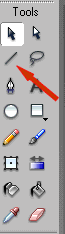
- Set the stroke to Solid from the drop-down menu in the properties panel
- Set the
Line thickness to 3.
- To help you create straight lines, hold down the SHIFT key while you draw.
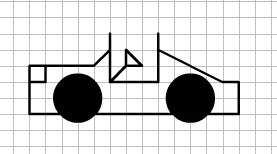
- Draw the chassis as shown in this graphic.
Fill the Car with the Color Red
- Select the Paint Bucket tool.

- Click on the Fill color box and select red as the fill color.
- Click on the car to apply the fill color.

Fill the Headlight with the Color White
- Select the Paint Bucket tool.
- Click on the Fill color box and select white as the fill
color.
- Click inside the headlight area.
Add the Hubcaps
- Choose the Selection tool.
- Move to the Library panel. Choose Window > Library
from the menu if the Library is not open.
- Click on the icon next to
Cap and drag a copy of Cap to the center of one tire.
- Click in the icon next to Cap again and drag another copy of
Cap to the center of the other tire.
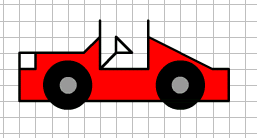
- Use the arrow keys to adjust the location of the hubcaps. Your
car should look similar to the one shown here.
Group the Car
You want Flash to view the car as a single object. You need to
group the car.
- Choose the Selection tool.
- Create a rectangle around the car to select all of the car.
- Choose Modify > Group from the menu.
Convert the Car to a Symbol
- Choose Modify > Convert to Symbol from the menu.
- Type Car in the Name field
- Select Graphic as the Behavior.
- Click on OK. The car will be stored the graphic in the Library.
- Press Delete to remove the car from the Stage.
Draw the Buildings
The final graphic to create is the buildings
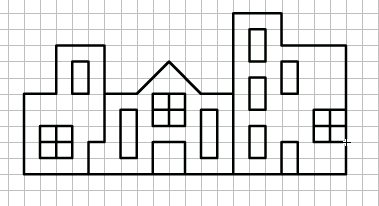
- Select the Line tool.
- Move to the Stage and draw buildings as shown in the illustration.
Add Color to the Buildings

Fill the first building with color:
- Select the Paint Bucket tool.
- Select tan as the fill color.
- Click in the first building to fill the building with color.
Fill the next building with color:
- Select green as the fill color.
- Click in the second building to fill the building with color.
Fill the last building with color:
- Select pink as the fill color.
- Click in the last building to fill the building with color.
Convert the Buildings to a Symbol
- Choose Modify > Convert to Symbol from the menu.
- Type Buildings in the Name field
- Select Graphic as the Behavior.
- Click on OK. The Buildings will be stored the graphic in the Library.
- Press Delete to remove the Buildings from the Stage.