
This tutorial will show you how to create a shape morph similar to below
Instructions:
1. Start a new flash document
2. Use the circle tool to draw a circle a size similar to that shown
(remember holding down shift while drawing makes a perfect circle)
3. Select the entire circle
(remember you must double click to get both the stroke and fill)
4. Make a copy of the circle
5. Paste the circle (it will appear in the middle of the stage)

6. Move the pasted image up beside the first circle
7. Keep pasting and moving the circles until you have 10 circles
(don't worry about them being aligned or spaced exactly, this will be fixed shortly)
8. Change the fill colour of each of the circles so that each one is different.

Now to align and evenly space the circles
9. Select all the circles
10. To make the circle in a straight row Choose Modify > Align > Top from the menus

11. To adjust the spacing between the circle to make it even, Choose Modify > Align > Distribute Widths from the menus.

The animation is going to be just over approximately 3 seconds long, so 36 frames (3 x 12 fps) are needed.
12. Insert a keyframe at frame 36
13. The circles are not needed on this last frame, so delete them from frame 36
14. On the Stage, below where the circles were, type the word Multimedia
(you may wish to use onion skinning to help in the alignment)
15. You will need to adjust the point size and font.
(I used 80 point, Arial Black in the example)
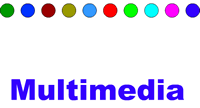
There are 10 circles and 10 letters, Each individual circle is going to morph to an individual letter. Right now the text Multimedia is all one, it needs to be broken into individual letters.
16. Select the text Multimedia, choose Modify > Break Apart from the menus.
The text will break into individual letters.

Now to do the Shape Tween
17. On the timeline, click anywhere between the starting frame and the ending frame.
18. Choose Create Shape Tween from the menu.
A dotted line should appear in the timeline, this indicates the tween is not complete

19. To fix the broken tween, go to frame 36 (the last frame), again Select the text Multimedia (if it is not already still selected), choose Modify > Break Apart from the menus
20. Drag the red play head back a few frames, and the tween should complete
21. Test your movie
Before you Publish your movie it is a good idea to remove any unneccasary space from the stage.
22. Choose Modify > Document from the menus, the document properties box should appear.

23. Click the Contents button and OK
The stage should automatically resize to only the used area.
24. You can now publish you movie